
Authentication
By Default, we are using Firebase for auth, if you want to change it to Jwt for that follow below steps.
Global App Setup with Authentication, Theme.
// -----------------------------------------------------------------------------------------
// File : src/routes/__root.tsx
// -----------------------------------------------------------------------------------------

import { HeadContent ,Scripts ,createRootRoute } from '@tanstack/react-router';
import { TanStackRouterDevtoolsPanel, TanStackDevtools } from '@tanstack/react-router-devtools';
import appCss  from '../styles.css?url';
import {useEffect} from 'React';
import { CustomizerContextProvider } from '@/context/customizer-context';
import './utils/i18n.ts';
import { AuthProvider } from './guards/auth/AuthContext.tsx';

let worker: any;
if (typeof window !== 'undefined') {
  worker = await import('@/api/mocks/browser').then(mod => mod.worker);
}


export const Route = createRootRoute({


  head: () => ({
    meta: [
      {
        charSet: "utf-8",
      },
      {
        name: "viewport",
        content: "width=device-width, initial-scale=1",
      },
      {
        title: "TanStack Start Starter",
      },
    ],
    links: [
      {
        rel: "stylesheet",
        href: appCss,
      },
    ],
  }),

  shellComponent: RootDocument,
});

function RootDocument({ children }: { children: React.ReactNode }) {
    useEffect(() => {
      if (worker) {
        worker.start();
      }
    }, []);

return (
     <html lang="en" >
       <head>
         <HeadContent/>
       </head>
       <body>
            <CustomizerContextProvider>
            <AuthProvider>
             {children}
            <TanStackDevtools
            config={{
              position: "bottom-right",
            }}
            plugins={[
              {
                name: "Tanstack Router",
                render: <TanStackRouterDevtoolsPanel/>,
              },
            ]}
          />
           <Scripts/>
           </AuthProvider>
         </CustomizerContextProvider>
      </body>
     </html>
1. Jwt Method
For JWT, incipiently change in AuthContext.tsx file as per below mention.
// -----------------------------------------------------------------------------------------
// File : src/guards/auth/AuthContext.tsx
// -----------------------------------------------------------------------------------------
interface InitialStateType {
  isAuthenticated: boolean;
  isInitialized: boolean;
  user: any | null;
  platform: 'Firebase' | 'Supabase' | 'JWT' | null;
}

const initialState: InitialStateType = {
  isAuthenticated: false,
  isInitialized: false,
  user: null,
  platform: 'JWT',
};
2. Firebase Method
For firebase, incipiently change in AuthContext.tsx file as per below mention.For more details about Firebase: https://firebase.google.com/
// -----------------------------------------------------------------------------------------
// File : src/guards/auth/AuthContext.tsx
// -----------------------------------------------------------------------------------------
interface InitialStateType {
  isAuthenticated: boolean;
  isInitialized: boolean;
  user: any | null;
  platform: 'Firebase' | 'Supabase' | 'JWT' | null;
}

const initialState: InitialStateType = {
  isAuthenticated: false,
  isInitialized: false,
  user: null,
  platform: 'Firebase',
};
Steps for Generate key
- click on “Go to console” display on the right side on firebase account.
- Then after Click on add Project.
- After Display popup menu, Enter Project name, Select Country And Click on Terms and condition Checkbox.Click on Create Project Button.
- Now, Display The Firebase Admin panel
- In Left Panel, Click on Develop option. Now Click on authentication link.
- Click on the “Web Setup” button.
- Now, copy the configuration and change in MaterialM-react project in ‘src/components/Firebase/firebase.js’.
- Now go to sign-in Method tab.Enable Email/Password and Anonymous in sign-in providers.
- Now, Click on database link from left Panel.
- Click on the create a database button.
- Display Popup in Select “start in locked mode” and Click on Enable Button.
- Now, select real-time Database.
- Click on rules tab. change the read and write rules from false to true.
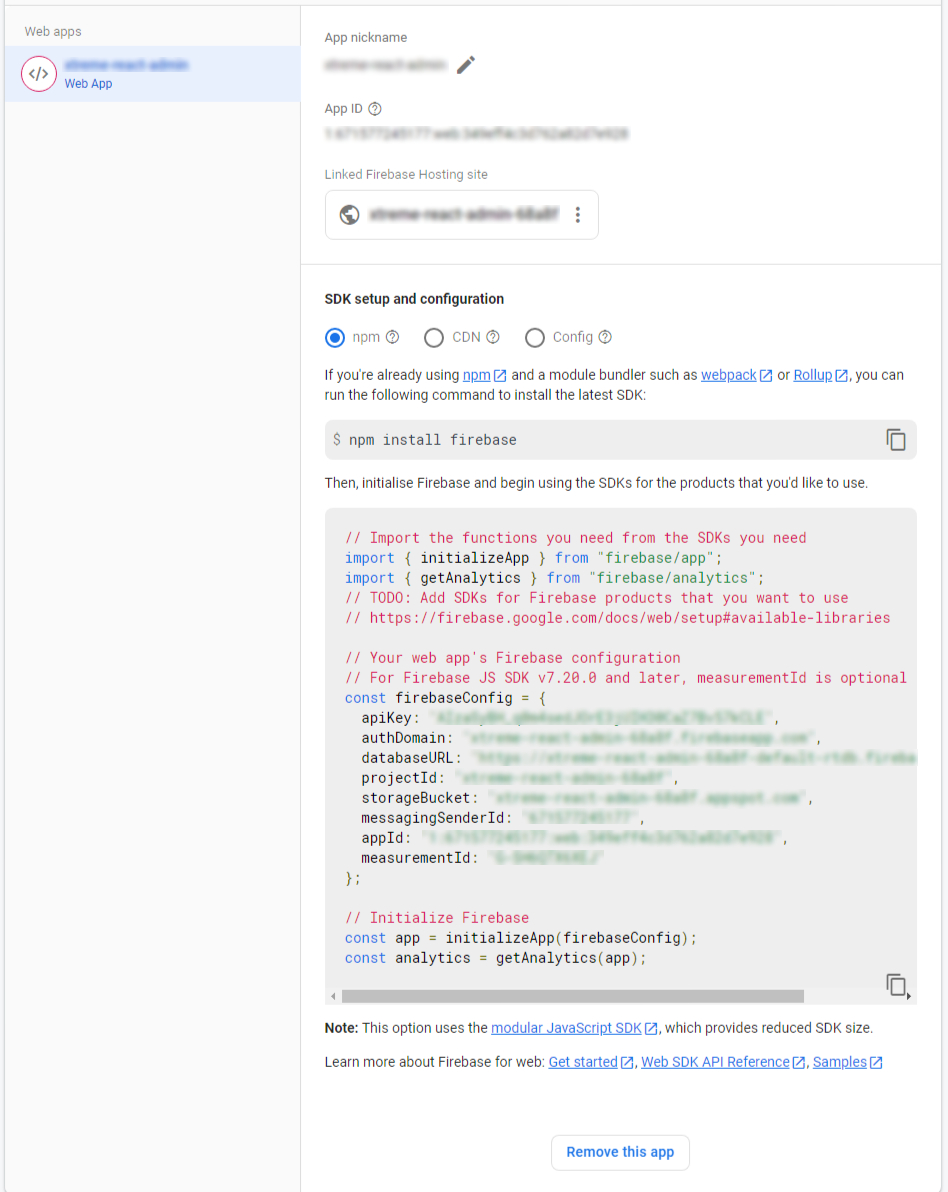
How to add key into template ?
// -----------------------------------------------------------------------------------------
// File: src/guards/firebase/Firebase.tsx
// -----------------------------------------------------------------------------------------
const firebaseConfig = {
  apiKey: 'API_KEY',
  authDomain: 'AUTH_DOMAIN',
  projectId: 'PROJECT_ID',
  storageBucket: 'STORAGE_BUCKET',
  messagingSenderId: 'SENDER_ID',
  appId: 'API_ID',
  measurementId: 'M_ID',
  databaseURL: 'DATABASE_URL',
};
3. Supabase Method
Folders And Files
Create .env file
// this is your .env file
VITE_SUPABASE_URL="YOUR_VITE_SUPABASE_URL"
VITE_SUPABASE_ANON_KEY="YOUR_VITE_SUPABASE_ANON_KEY"
Inside that folder you will get this file src > guards > supabase > supabaseClient.ts
import { createClient } from '@supabase/supabase-js';

const supabaseUrl: string | any = import.meta.env.VITE_SUPABASE_URL;
const supabaseKey: string | any = import.meta.env.VITE_SUPABASE_ANON_KEY;

export const supabase = createClient(supabaseUrl, supabaseKey);
Platform Configuration
// -----------------------------------------------------------------------------------------
// File : src/guards/auth/AuthContext.tsx
// -----------------------------------------------------------------------------------------
interface InitialStateType {
  isAuthenticated: boolean;
  isInitialized: boolean;
  user: any | null;
  platform: 'Firebase' | 'Supabase' | 'JWT' | null;
}

const initialState: InitialStateType = {
  isAuthenticated: false,
  isInitialized: false,
  user: null,
  platform: 'Supabase',
};
Steps for Generate key
- Go to “https://supabase.com/
- click on "Sign Up" or "Log In" and complete the process.
- On the dashboard, click on the "New Project" button.
- After Display popup menu, Enter Project name, Select Country.Click on Create Project Button.
- Once your project is created, go to the Project Dashboard.
- In Left Panel, Now Click on authentication Tab.
- By default, Email & Password authentication is enabled, which allows users to sign up and sign in using their email and password.
- You can also enable OAuth Providers like Google, GitHub, Twitter, etc.
- In the Settings tab under Authentication, you can customize email templates for user verification, password reset emails, and more.
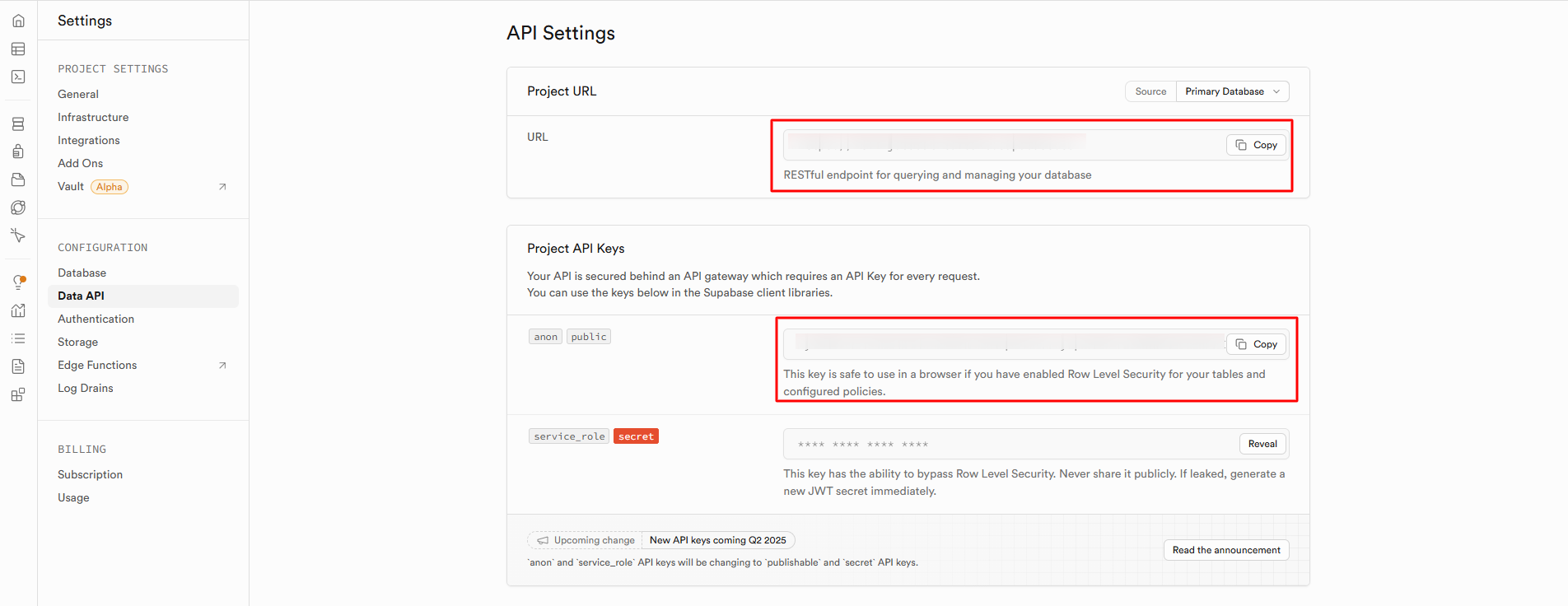
- Now, From the left sidebar, click on API.
- Poject Url: This is used for client-side authentication, to interact with your Supabase project. Copy this URL.
- Anon Key: This is used for client-side authentication, Copy this key.
- Install Supabase : npm install @supabase/supabase-js
- Create an .env File to Store Your Keys
 // this is your .env file
VITE_SUPABASE_URL="YOUR_VITE_SUPABASE_URL"
VITE_SUPABASE_ANON_KEY="YOUR_VITE_SUPABASE_ANON_KEY"
import { createClient } from '@supabase/supabase-js';

const supabaseUrl: string | any = import.meta.env.VITE_SUPABASE_URL;
const supabaseKey: string | any = import.meta.env.VITE_SUPABASE_ANON_KEY;

export const supabase = createClient(supabaseUrl, supabaseKey);